Say Goodbye to the Laptop, Not Your Passwords: Donating an Old PC Safely in the UK
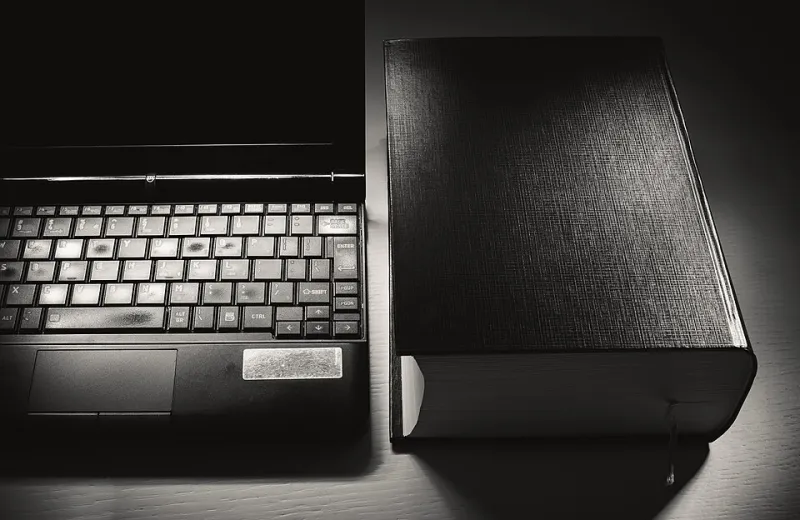
Photo: Dejan Krsmanovic, CC BY 2.0, via Wikimedia Commons
Buying a new laptop is the fun part. The awkward bit arrives about three weeks later, when the old one is still sitting on the desk, half-wiped, with a banking shortcut and a decade of holiday photos still on the drive. Most of us mean to sort it out properly, then quietly put it back in the cupboard instead.
This is the gentle nudge to finish the job. Handing a working machine to someone who needs it is genuinely worthwhile, and in the UK there are more routes than most people realise. The only real rule is that the machine leaves the house clean — not just tidy, but actually clean.
Recycling is easy. Letting go is the hard part
The hardware side is not the problem. Councils across the UK run household waste recycling centres with a WEEE container (that's waste electrical and electronic equipment), and most will take a laptop or desktop off your hands for free. Currys accepts old tech in store, and Recycle Your Electricals has a postcode finder for local drop-off points.
But a recycling skip is a one-way door. Once it goes in, that's the end of a machine that might have had years of life left in it for a student, a community group or a family on a tight budget. Reuse beats recycling every time, and it is usually just as easy.
The part people get nervous about isn't the tip run. It's the drive.
The factory reset is a good start — and not quite the whole story
"Reset this PC" in Windows feels reassuringly final. It isn't. On a traditional spinning hard drive, a reset marks the old files as deleted without necessarily overwriting them, which means recovery software can, in the right circumstances, fish fragments back out again.
That is less alarming than it sounds for most of us. Nobody is going to build a forensic lab to recover your supermarket login. But if the machine held anything sensitive — work documents, a scanned passport, years of personal correspondence — a reset alone isn't a full answer. Newer machines with solid-state drives are safer by default, because Windows encrypts the drive on many modern PCs and SSDs handle deleted data differently. Still, "safer by default" isn't the same as "done".
Five minutes of admin before anything gets erased
Sort these out first, because they're all things you can't do once the drive is gone.
- Back up what you want to keep. Photos, tax returns, that novel you started in 2018. Copy them to an external drive or cloud storage, then open a few files to check they actually work.
- Sign out of software with install limits. Microsoft 365, Adobe apps and similar tie a licence to a device. Most accounts let you remove a device online, freeing the seat for the new machine.
- Remove the PC from your Microsoft account. Sign in at account.microsoft.com/devices and delete it, so it stops appearing in Find My Device.
- Check your browser and phone. Saved passwords syncing in Chrome or Edge, two-factor apps tied to the old computer, and any "remember this device" checkboxes you've ticked over the years.
- Empty the small stuff. SD cards, USB dongles, discs in the tray, that memorable SIM in a laptop slot. They're easy to forget and often more revealing than the drive.
- Note the Windows licence situation. If the machine has a Windows sticker on the base, that's useful information for whoever takes it on.
Encrypt first, then reset: the trick that does the heavy lifting
Here's the neat bit. If you make the drive unreadable before you wipe it, then wiping the encryption key effectively shreds everything at once — even the bits a reset misses.
On Windows 11 Home, look for Settings > Privacy & security > Device encryption. On Pro machines, it's BitLocker. Turn it on, let it finish completely (this can take a while on a big drive), and then run the reset.
When the reset asks how thorough you want to be, choose the option to remove files and clean the drive. Windows will take longer and may restart a few times. Let it. A machine that sits at 30% for forty minutes is not broken; it's working.
Free tools that overwrite the drive properly
If you'd rather do it yourself, or the machine is too old for encryption, there are free options that do the job without any drama:
- The built-in command line. In Windows, open Command Prompt as administrator and run
cipher /w:C:to overwrite free space on the C: drive. Slow, free, and no downloads. - Diskpart's
clean allcommand. This zeroes the entire drive. It's thorough, but it takes hours on a large disk and it erases Windows along with everything else, so only use it on a machine you're finished with. - DBAN (Darik's Boot and Nuke). A classic for older spinning drives. Do not use it on an SSD — multiple overwrite passes don't suit flash memory and can shorten its life.
- Manufacturer tools for SSDs. Samsung Magician, Crucial Storage Executive and Kingston SSD Manager all include a Secure Erase option, which is the correct method for solid-state drives.
- A hammer, as a last resort. If the drive is failing, ancient, or you simply want certainty, removing it and destroying it physically is a legitimate choice. Keep the drive, donate the rest.
What charity shops, recycling centres and reuse schemes actually expect
High-street charity shops are often unable to test or PAT-test electricals, so plenty will politely decline a laptop over the counter. That's not a snub — it's a safety and liability thing. The better route is an organisation set up for refurbishment, from national computer reuse charities to local groups that kit out schools, shelters and community centres. Freegle and Freecycle are also full of people who will happily collect a working machine and put it to use.
Wherever you go, the expectation is the same: a machine that switches on, comes with its charger, and doesn't arrive with someone else's life on it.
A calm checklist before it leaves the house
- Back up, and verify the backup.
- Remove the device from your Microsoft account.
- Turn on device encryption or BitLocker, and wait for it to finish.
- Reset with the clean-the-drive option, or use a tool above.
- Sign out of browser sync and remove saved passwords.
- Take out cards, dongles and discs.
- Include the charger, and write down the Windows licence details if there's a sticker.
- Choose your route: reuse charity, community group, Freegle, retailer take-back, or your local recycling centre.
A laptop that still works is a genuinely useful thing to pass on. Spend an evening on the drive first, and you can hand it over with a clear head instead of a nagging worry.