The £50 Second Chance: Is an SSD Upgrade Right for Your Old Laptop?
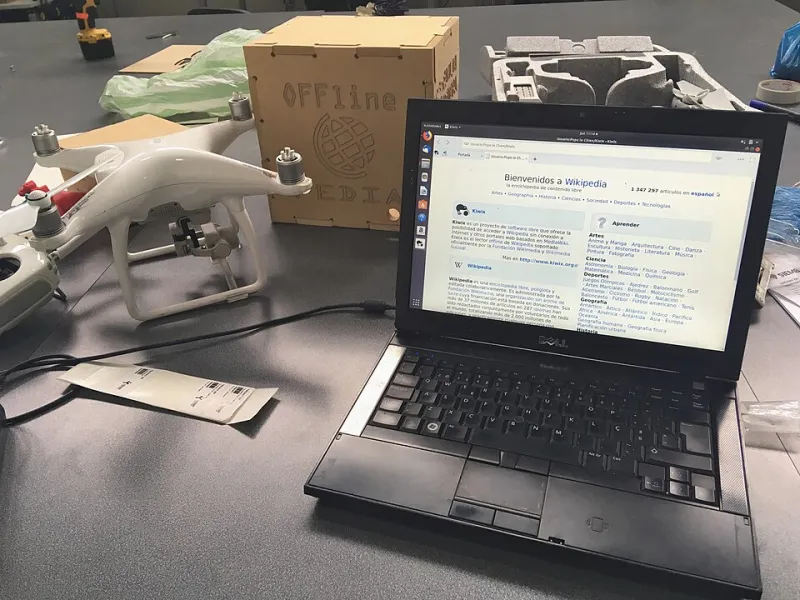
Photo: Thelichprince, CC BY-SA 4.0, via Wikimedia Commons
There is a particular moment in every old laptop's life when it stops feeling slow and starts feeling broken. Windows takes an age to settle, the fan has a permanent wheeze, and you find yourself making tea while a browser tab loads. Before you bin it, though, there is one upgrade that genuinely changes the experience: swapping the old mechanical hard drive for a solid-state drive.
A 20-minute SSD transplant is not a magic cure for every ageing machine. But when the laptop is otherwise sound, it is often the difference between a computer you tolerate and one you actually enjoy using again. Let us walk through the sensible version.
First, the honest question: is it worth it?
For a laptop that is roughly five to eight years old, an SSD is usually the single best pound-for-pound upgrade you can make. It will not make an old processor faster at video editing, and it will not fix a tired battery. What it does do is remove the painful waiting that makes everything feel worse than it is.
In 2026, a 1TB 2.5-inch SATA SSD tends to sit somewhere around £45 to £65 in the UK. A 1TB NVMe drive is more like £50 to £80, depending on speed and brand. That is a modest outlay compared with a new laptop, and it is why so many people give an old machine one last go.
The headline says 20 minutes, and the physical swap can genuinely take that long on a laptop with a removable access panel. Cloning your old drive to the new one can add an hour or two, and a clean Windows install will take a chunk of an afternoon. Be honest about which route you are taking.
The warning signs that say not this one
Some laptops are past the point where an SSD makes financial sense. Walk away if the storage is soldered to the motherboard, which is common on very slim models. Check before buying anything: a quick search for your model plus 'SSD upgrade' will usually tell you whether there is a replaceable drive inside.
Other red flags include a swollen battery, a cracked or stiff hinge, a screen with flickering or dead patches, and a machine that only has 32GB or 64GB of eMMC storage. If the laptop is physically falling apart, a faster drive will just help it fall apart more quickly.
What you will need
You need the right drive first. Older laptops usually take a 2.5-inch SATA SSD. Newer ones may take an M.2 NVMe drive, but not every M.2 slot supports every drive, so check the model and the key type. A USB-to-SATA cable or enclosure is useful for cloning and for reusing the old drive afterwards. For NVMe, you would need a USB-to-NVMe enclosure instead.
On the tools side, a small Phillips screwdriver, a plastic pry tool or an old guitar pick, and a little patience will get most jobs done. Before you open anything, back up your important files. If BitLocker is switched on, suspend it before cloning, or the new drive may refuse to boot.
Clone or clean install?
Cloning copies Windows, your programs, and your files across exactly as they are. It is convenient, and for a lot of people it is the least stressful option. The catch is that it also copies across years of clutter, odd settings, and whatever was slowing the old drive down in the first place.
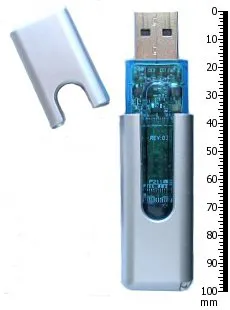
A clean Windows install is fussier. You need a USB stick, a Windows media creation tool, and a list of the programs you actually use. But on an older laptop it often gives a fresher, snappier result. Whichever route you choose, keep a backup of your documents and photos on a separate drive until you are sure everything has arrived safely.
The swap itself
Unplug the charger and, if your laptop has a removable battery, take it out. Open the access panel, locate the drive, and take a photo before you touch anything. Remove the retaining screw, slide the old drive out, and fit the new one firmly. Reassemble, plug in, and boot up.
If you cloned the drive, it should start as normal. If you went for a clean install, follow the Windows setup prompts and reconnect your files afterwards. The first boot can feel slow while Windows settles, so give it a few minutes before you judge the result.
What to do with the old drive
Do not throw the old drive away. Pop it into a USB enclosure and you have an instant external backup drive. Copy anything you missed, keep it for a month or two, then wipe it properly before disposing of it or passing it on. If the old drive was failing, do not trust it with your only copy of anything.
After the swap
Run Windows Update, check that your browser and security software are up to date, and give the laptop a proper test drive for a few days. If the machine still feels sluggish, the bottleneck may be memory or an old processor rather than storage. But for many ageing laptops, this is the upgrade that makes them feel useful again without the cost of a new machine.