Buffering at Nine O'Clock? How to Tell a Broadband Fault from a Struggling PC
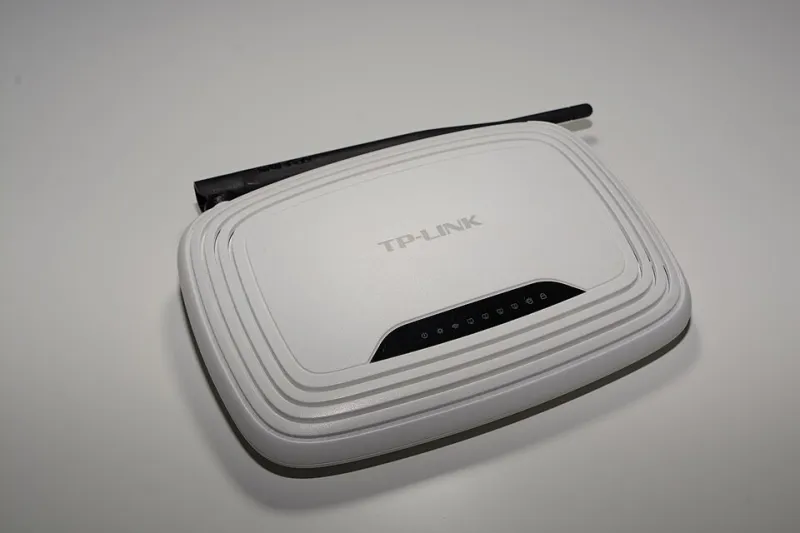
Photo: Hayden Schiff, CC BY 4.0, via Wikimedia Commons
It's quarter past nine on a Sunday. The iPlayer stream has dropped to a smudge, the video call froze on a double chin, and someone in the house says the sentence that starts every broadband argument: "It's the internet."
Maybe. But half the time, the line is fine and the computer is the one floundering. The trick is to work out which, calmly, before you spend forty minutes on hold. Here's how to be the detective rather than the complainant.
Start with the shape of the problem
A speed number on its own tells you almost nothing. The pattern tells you plenty.
Is it every device in the house, or just the one laptop? If the phone streams perfectly while the desktop stutters, you have a device problem. If everything falls over at the same moment, you're looking at the line or the router.
Is it all day, or only in the evening? A slowdown that arrives around 8pm and clears by 11pm has the signature of a congested street cabinet or a busy local network — common in dense UK towns and student areas. A slowdown that never lifts points somewhere else entirely.
Does it happen on Wi-Fi only, or on a cable too? That single question eliminates a huge amount of guesswork.
Test it wired, test it alone, test it twice
Before trusting any result, give yourself a clean experiment:
- Plug the laptop into the router with an Ethernet cable. Yes, it's inconvenient. It's also the only way to remove Wi-Fi from the equation.
- Pause everything else. Cloud backups, Steam downloads, iCloud photo sync, someone else's 4K stream.
- Run a speed test — Ofcom's own checker, or a well-known service like Speedtest.net or Fast.com.
- Do it three times: once in the morning, once at your worst evening hour, once late at night. Write the numbers down with the times.
That little log is your evidence, and it's worth more than any amount of frustrated describing on the phone.
What "up to 900Mb" is actually promising
UK advertising rules mean a provider can only shout "up to" a speed if a meaningful slice of its customers actually get it — roughly one in ten. It is a ceiling, not a promise for your particular hallway.
More useful is the personalised speed estimate you should have been given when you signed up, and the guaranteed minimum speed that comes with it. Ofcom's rules are fairly protective here: if your line consistently drops below that guaranteed figure, you generally have the right to walk away without a penalty. Keep that estimate somewhere — it turns a vague complaint into a specific one.
Reading the numbers without panicking
Three figures matter, and only one of them is the big one on the poster.
Download speed is measured in megabits per second. Streaming in HD needs roughly 5Mbps, 4K wants about 25Mbps, and a busy household stacks those up. Note the small print: file sizes are in megabytes, and there are eight bits to a byte, so a 100Mbps line downloads at around 12.5MB per second. That mismatch causes more confusion than any actual fault.
Upload speed is what your video calls and cloud backups rely on. Full-fibre packages are usually symmetrical, which is why they feel so much better on Zoom. Older copper-based services are heavily lopsided.
Latency — the ping figure in milliseconds — decides whether games and calls feel crisp. Anything under about 30ms is comfortable. This is why a line can test beautifully and still feel awful if it's unstable.
Now the other suspect: your PC
If the wired test gives you the speed you're paying for and the machine still feels sluggish, close the ISP tab and open Task Manager with Ctrl+Shift+Esc. Head to the Performance tab and watch the network graph while you reproduce the problem.
A few familiar culprits:
- Background downloads. Windows Update, Delivery Optimisation sharing updates with other PCs, OneDrive or Dropbox catching up, a game client patching itself. These can eat a whole connection without a single visible window.
- Too many tabs. Modern browsers are memory-hungry, and a machine short on RAM will stutter in ways that look exactly like bad broadband.
- An ageing Wi-Fi card or driver. If the adapter is years behind, it may be clinging to the crowded 2.4GHz band. Check Device Manager, and see whether your router offers a 5GHz network the laptop can join.
- Power settings. A laptop on battery saver will happily throttle its own Wi-Fi to save a few minutes of runtime.
- The CPU pinned at 100%. If the processor is flat out, video decoding suffers and the stream buffers even on a perfect line.
Walls, microwaves and the great British terrace
Router placement explains an astonishing number of "broadband faults". A cupboard under the stairs, a shelf behind the telly, or a spot next to the fish tank are all doing you no favours. Thick Victorian walls, foil-backed insulation and chimney breasts soak up signal, and so do mirrors and metal shelving.
Interference is real too: microwaves, baby monitors and cordless phones all chatter away on 2.4GHz, which is also the band your neighbours are using. In a terraced street, everyone is fighting over the same air. If your router lets you pick a channel, try a quieter one, or move devices that can handle it onto 5GHz.
For rooms that Wi-Fi can't reach, powerline adapters sometimes work and sometimes disappoint, depending on your ring main. A mesh kit is usually the more reliable spend.
Calling the provider — with evidence, not vibes
When you ring, lead with facts: the times, the wired results, the devices affected, what you've already tried (restart, cable swap, test socket if you have one). Ask them to run a line check while you're on the call.
Two things worth knowing. First, Ofcom's automatic compensation scheme means providers owe you money for delayed repairs and missed appointments without you having to argue for it — ask whether it applies. Second, if the line genuinely can't hit its guaranteed minimum, you can usually exit the contract penalty-free.
The short version
Test wired, test alone, test at different times. If the numbers hold up, the problem lives inside the computer: check Task Manager, the Wi-Fi band, and the driver. If they don't, you now have the paperwork to make a phone call that gets taken seriously.
Either way, no shouting required.