The Tea-Spill Panic: Five Social Media PC 'Fixes' That Can Make Things Worse
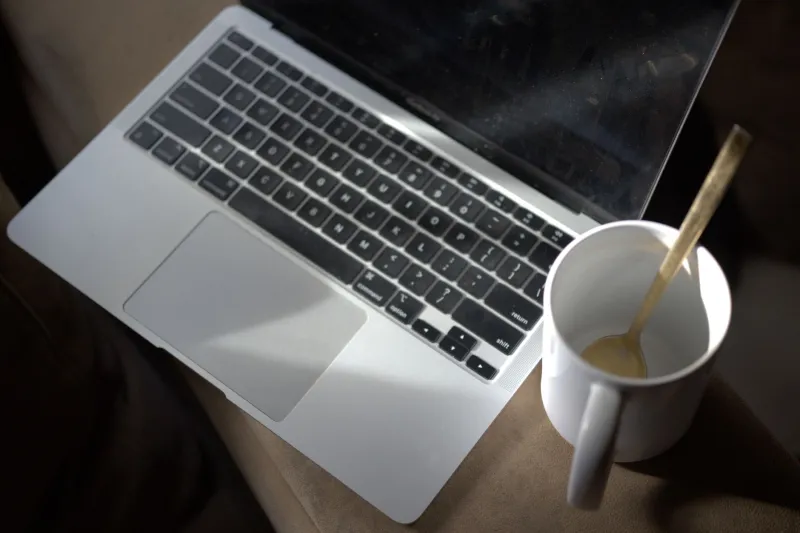
You spill a mug of tea over your laptop. While you are still dabbing the keyboard with kitchen roll, your phone serves up a video of someone burying a soaked laptop in a bag of rice. It has thousands of likes. It looks sensible. It is not.
That is the trouble with viral PC fixes. They arrive at the exact moment you are panicking, and they promise a cheap, satisfying answer. In 2026 the same tricks are still doing the rounds on social feeds, group chats and short videos. Some are harmless time-wasters. Others can turn a recoverable problem into a dead machine and a lost photo album. Here are five we would swipe past every time, why they are a bad idea, and what to do instead.
1. The rice bag rescue for a wet laptop
The idea: rice absorbs moisture, so a damp laptop goes into a bag of rice overnight and comes out fine. It is the most shared tech tip of all time, and it refuses to die.
Why it is a problem: rice is food, not a properly designed drying agent. Grains and starch dust can work their way into ports, vents and under keys. Rice does not pull moisture out of the inside of a sealed laptop nearly as well as the video suggests, and it can slow down proper drying by trapping damp air. The real danger is corrosion on the motherboard. A laptop that might have been cleaned and saved can be written off after a night in a Tesco own-brand rice bag.
What to do instead: switch it off straight away and unplug the charger. Remove any cables, USB sticks and memory cards. If the battery is easy to remove, take it out. Tilt the laptop to let liquid run out, blot the surface gently, and leave it in a warm, dry, well-ventilated room. Do not charge it, do not use a hairdryer, and do not keep switching it on to see if it works. If it was a proper spill rather than a splash, get it looked at by a repair shop. If the data matters, say so before anyone starts work.
2. The freezer trick for a failing hard drive
You will find posts suggesting you seal a clicking or unrecognised hard drive in a bag and put it in the freezer for a few hours. The claim is that the cold shrinks the metal parts just enough to free the stuck mechanism, giving you a short window to copy your files.
Why it is a problem: hard drives are precision devices, not ice lollies. Freezing one can create condensation when it warms up, and that moisture is bad news for the circuit board and the platters inside. Thermal shock can make a failing drive worse. Even if the drive spins up for a few minutes, you are gambling with the only copy of your family photos, work documents or saved game files. A drive that is clicking or not appearing in Windows is already in trouble; the freezer is not a rescue plan.
What to do instead: stop using the drive. Every extra spin can reduce the chance of recovery. If the PC still starts, copy the most important files off first, not the whole drive. If it will not show up at all, speak to a professional data recovery service. For the future, set up a backup that runs without you remembering: an external drive, a cloud service, or both. The best time to think about backups is before the click starts.
3. 'Download more RAM'
This one is often a joke, but the joke has a habit of catching people out. A website offers extra memory as a download, sometimes with a progress bar and a price. It looks like a software upgrade for a slow PC.
Why it is a problem: RAM is a physical part. You cannot download it, no matter how convincing the animation is. At best, these sites are a prank. At worst, they push adware, browser hijackers or malware onto your machine. Some ask for card details for a 'premium memory boost' that does not exist. If a site tells you to run a file to add RAM, close the tab.
What to do instead: find out what is actually using your memory. Open Task Manager with Ctrl + Shift + Esc and look at the Performance tab. If memory is regularly near 100%, close unused browser tabs and check what starts with Windows. A RAM upgrade can be a sensible fix if your PC has a free slot and you are comfortable opening the case. If not, a repair shop can fit it. An SSD upgrade is often the bigger win for an older machine that feels sluggish.
4. Delete System32 to speed up Windows
This is the classic internet wind-up: a post tells you to delete the System32 folder, or remove Windows files, to make your PC faster. It is usually posted as a joke, but every year someone follows it.
Why it is a problem: System32 contains core Windows files. Deleting it does not speed up your PC; it stops Windows working properly. You may lose access to the desktop, updates or recovery tools. Fixing it can mean a full reinstall, and if your files are not backed up, that is a stressful afternoon. No legitimate speed-up guide will ask you to delete system folders.
What to do instead: use the boring tools that actually help. Run Disk Cleanup or Storage Sense to clear temporary files. Uninstall programs you no longer use. Trim the startup list so unnecessary apps do not launch at login. Install Windows updates when you can, and restart properly rather than closing the lid for weeks. If the machine is still slow, find the bottleneck first: memory, storage, processor or heat. That tells you what to fix, rather than guessing with system files.
5. Defragmenting an SSD every week
Defragmenting used to be a sensible job for mechanical hard drives. Somehow it became a general 'make your PC faster' tip, and people still run it on solid-state drives out of habit.
Why it is a problem: an SSD has no spinning platter or moving read head, so defragmenting does not give it the same benefit. Windows already manages SSDs with TRIM and its own optimisation schedule. Running a full defrag regularly adds unnecessary write cycles, and SSDs have a limited number of writes over their life. It is not an instant disaster, but it is pointless wear.
What to do instead: leave Windows to handle it. If you want to check, search for 'Defragment and Optimise Drives' and look at the schedule. For an SSD it should say 'Optimise', not 'Defragment'. Keep at least 15 to 20 percent of the drive free, because a nearly full SSD slows down. If the PC feels slow, check drive health and startup apps before reaching for a maintenance tool.
The common thread here is simple: real PC care is rarely dramatic. It is backups, updates, a bit of cleaning up and knowing when to stop poking. If a viral fix involves food, a freezer, downloading hardware, deleting system files or scrubbing an SSD, pause. Your PC is not a stunt prop. A calm check and a proper backup will beat a clever video almost every time.