When the Cursor Stutters: Calm Ways to Fix a Flaky Wireless Mouse
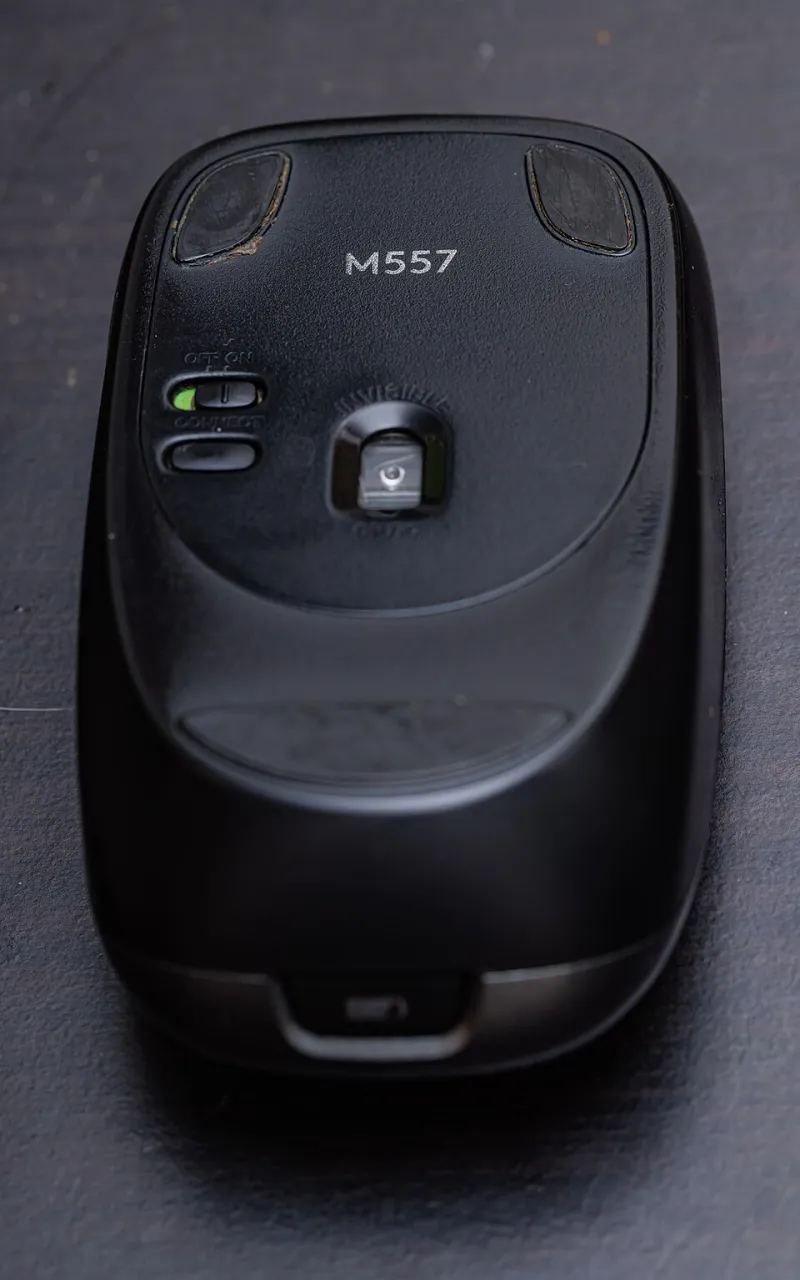
Photo: Dinkun Chen, CC BY-SA 4.0, via Wikimedia Commons
A wireless mouse should feel invisible. You move your hand, the cursor moves. When it stutters, jumps or pauses for half a second, the whole PC feels broken. The good news is that most wireless mouse problems are not mysterious. They are usually about signal, power or pairing, and you can test each one without special tools.
First, prove it is the mouse
Before you crawl under the desk, rule out the obvious. Try a wired mouse if you have one. If the cursor is smooth with a wire, the PC is fine and the wireless side is the suspect. If the wired mouse also stutters, stop here and look at the PC itself: a busy processor, a failing drive or a display driver problem can all make the pointer feel jerky. Also try the wireless mouse on another computer if you can. That single test tells you whether to fix the mouse or the machine.
Move the receiver out of the shadows
Most wireless mice use a small USB receiver. Its position matters more than people expect. Plugging it into the back of a desktop tower, behind a metal case and a monitor, gives it a poor view of the mouse. Use a front USB port, or better, a short USB extension cable to bring the receiver up onto the desk. Keep it away from metal, speakers, external hard drives and the back of the monitor. If your mouse came with a charging dock or a receiver stand, use it. A clear line of sight between mouse and receiver is half the battle.
The USB 3 trap
USB 3 ports can create radio noise near 2.4 GHz, which is the band many wireless mice use. If the receiver is plugged into a USB 3 port right next to an external SSD or a hub, the mouse may stutter when that drive is busy. Try moving the receiver to a USB 2 port, often the black ones rather than the blue ones. If you must use a hub, put the receiver on a short extension cable away from the hub and its power supply. This is not a guarantee, but it is one of the most common fixes for a mouse that hiccups when other devices are working hard.
Living with a crowded 2.4 GHz band
Your home is full of 2.4 GHz signals: Wi-Fi, smart doorbells, baby monitors, cordless phones, microwave ovens and neighbours' routers. A wireless mouse shares that space. If the stutter happens at the same time each evening, or when someone uses the microwave, congestion is a likely culprit. Try moving the receiver away from the router. If you can, change your Wi-Fi router to the 5 GHz band for devices that support it, which reduces 2.4 GHz traffic. Some mice let you change channel through their software; if yours does, try another channel. If not, a Bluetooth mouse or a wired mouse may be more stable in a very crowded home.
Batteries, contacts and Bluetooth
A weak battery is a classic cause of stuttering. Rechargeable batteries can be worse than they look because their voltage sags under load. Fit a fresh alkaline battery, or charge the mouse fully, and test again. While you are there, clean the battery contacts with a dry cloth and check for corrosion. For Bluetooth mice, remove the device in Windows Settings, then pair it again. Make sure the mouse is not paired to two devices at once if it has a switch. If your laptop has both Bluetooth and a 2.4 GHz receiver active, use one and disable the other to avoid confusion.
A five-minute test plan
Start with a fresh battery. Move the receiver to the front of the PC or onto the desk with an extension cable. Try a different USB port, preferably USB 2. Test with a wired mouse to confirm the PC is fine. Turn off nearby USB 3 drives or hubs for a minute and see if the stutter stops. Move the receiver away from the router and any smart speakers. If the mouse has software, check for a firmware update and a channel setting. Finally, try Bluetooth instead of the receiver, or the receiver instead of Bluetooth. One of these changes usually narrows the problem down.
When to replace
If the mouse still stutters after a fresh battery, a clear receiver position and a different port, the fault may be inside the mouse. Buttons wear out, sensors collect dust, and receiver dongles fail. Before buying a new one, check the warranty; many mice have two or three years of cover. A replacement does not need to be expensive. A well-reviewed £20 to £40 wireless mouse from a known brand is often more reliable than a cheap unbranded model. If you share a busy desk with lots of wireless gear, consider a wired mouse for important work and keep the wireless one for casual use. Calm, simple tests will tell you which one you need.