The Endless Restart: Calm Steps for a PC That Won’t Get Past the Logo

There are few PC problems quite as frustrating as the endless restart. You press the power button, the manufacturer logo appears, the fans spin up, and then—before Windows even has a chance to load—the machine starts over. And over. And over.
The good news is that a boot loop does not automatically mean the PC is finished. It can be caused by something as simple as a plugged-in USB stick, a recent update that went sideways, or a loose cable inside a desktop. The trick is to work through the likely causes in a sensible order, without turning a confusing morning into an expensive one.
Here at BootUp PC, we prefer the calm route: check the easy things first, protect your files before you go deeper, and know when to hand the job to someone with the right tools.
First, Press Pause and Unplug the Extras
Before you assume the worst, strip things back. Switch the PC off at the wall, then unplug everything that is not essential: USB drives, printers, webcams, card readers, phone cables, dongles, and any external hard drives. Leave the monitor, keyboard, and mouse connected.
Power the PC back on. If it gets past the logo and into Windows, one of those extras was likely confusing the boot process. Plug them back in one at a time, restarting between each, until you find the culprit. A faulty USB stick or an external drive with a wobbly connection can be enough to derail startup.
If you have a laptop, also remove any memory card from the slot. And if there is a disc in an optical drive—increasingly rare, but still possible—take that out too.
Look and Listen for Clues
A boot loop is not always silent. Listen for beeps, repeated clicking, or a fan that suddenly sounds like a small aircraft. Look for any message on screen, even a brief one, and note whether the restart happens before or after the Windows logo appears.
On a desktop, check that the vents are not blocked and that the fan is actually spinning. If the machine feels unusually hot or smells faintly of hot plastic, stop and unplug it. Overheating can cause repeated shutdowns, and a burning smell is a firm signal to call a professional rather than carry on.
Do not open the power supply unit. That applies to confident tinkerers too. The capacitors inside can hold a dangerous charge even after the PC is unplugged.
Getting Into Windows Recovery
If the PC is still looping, Windows may be able to help itself. On Windows 10 and 11, you can often trigger Automatic Repair by interrupting startup three times in a row. As soon as the manufacturer logo appears, hold the power button until the PC switches off. Repeat that three times, then let it start normally. With a bit of luck, you will see a Preparing Automatic Repair screen.
From there, choose Advanced options, then Troubleshoot, then Advanced options again. You should see tools such as Startup Repair, System Restore, Uninstall Updates, and Startup Settings.
Startup Repair is the least invasive option, so try that first. If it does not help, System Restore can roll Windows back to an earlier point, provided you have restore points switched on. Uninstall Updates is worth a look if the loop began immediately after a recent update landed. And Safe Mode—found under Startup Settings—loads Windows with a minimal set of drivers, which can be enough to get you to your files.
If You Can Reach Safe Mode, Back Up First
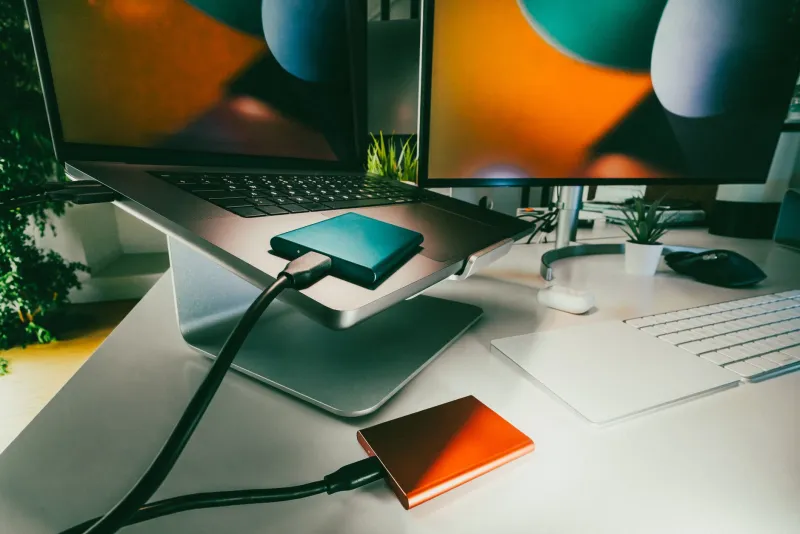
Safe Mode is not a permanent fix, but it is a useful lifeboat. If you can get in, copy your important documents, photos, and anything else you would hate to lose onto an external drive or a cloud service. Do that before running repairs or reinstalling anything.
If your PC uses BitLocker encryption, make sure you have your recovery key to hand. It may be saved to your Microsoft account or printed somewhere safe. Without it, a repair or reset can leave your files locked away.
The Drive and RAM Checks
For desktop owners who are comfortable with a screwdriver, the next checks are cables and memory. Switch off at the wall, unplug the power lead, and press the power button once to drain any leftover charge. Touch a bare metal part of the case to reduce static, then look inside.
Check that the drive cables are firmly seated at both ends. If you have a SATA drive, the wide power cable and the narrower data cable should both click into place. For RAM, you can carefully release the clips and reseat the sticks, but do not touch the gold contacts with your fingers. If you have more than one stick, you can try one at a time to see whether a faulty module is causing the loop.
Laptop owners should be more cautious. Some models are easy to open, but many are not, and poking around inside can void a warranty. If the laptop is still covered, contact the manufacturer before reaching for a screwdriver.
When to Stop and Ask for Help
There is a point where calm checking becomes unnecessary risk. Stop and contact a repair shop if the PC repeatedly fails Startup Repair, if you hear clicking from the drive, if there is a burning smell or signs of liquid damage, or if the machine is still under warranty. A good local repair shop should explain the diagnostic fee, ask whether you need your data preserved, and give you a quote before doing chargeable work.
And if you are simply not comfortable opening the case, that is not a failure. A boot loop can have several causes, and a professional can test the drive, memory, and power supply far more quickly than a home user with a YouTube video and a mug of tea.
A Calm Recap
Unplug the extras first. Listen for clues. Try Windows Recovery. Back up your files if you can reach Safe Mode. Only then consider cable and RAM checks. If the problem persists—or anything smells hot, clicks, or feels beyond your comfort zone—call in a repair shop. Your PC may well live to boot another day.